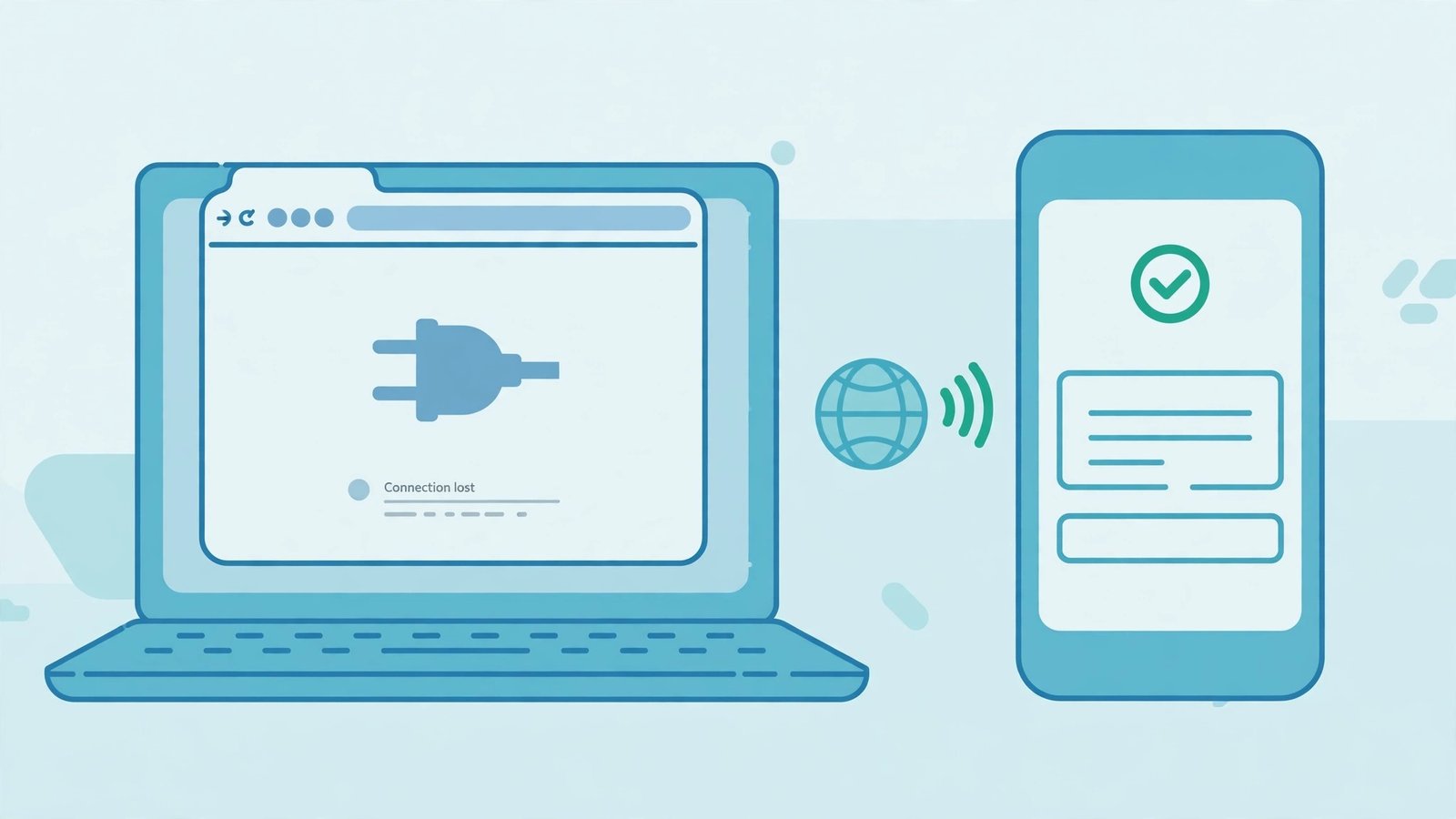
When a site won’t load, the first question to answer is: is website down for everyone, or is it just you? A down-detector settles it in under a minute — if the site loads fine from its servers, the problem is on your side, and the fix is usually quick.
That one-minute test matters because the fix depends entirely on the answer. A site that is down for everyone needs patience — or a message to its owner. A site that is down only for you can usually be fixed in the next five minutes, once you know which of the usual suspects is responsible.
How Do I Check If a Website Is Down for Everyone?
The fastest check is a down-detector: a service that loads the site from its own servers and tells you whether it responded. Try one of these free options:
- Down for Everyone or Just Me (downforeveryoneorjustme.com) — the classic. Type the address, and it reports whether the site is up or down from its location.
- DownDetector (downdetector.com) — shows whether other people are reporting the same outage right now, plus a live outage graph. If hundreds of reports spike in the last few minutes, the site really is down.
- Is It Down Right Now (isitdownrightnow.com) — reports the site’s status, response time, and recent downtime history.
These are the tools people mean when they search “is website down for everyone” — a detector checks from its own servers, so its verdict is independent of your connection.
Run two detectors, not one. A single checker can itself have a hiccup, and a site that is slow to answer can look down to a checker with a short timeout. If both say the site is up but your browser still shows an error, the problem is on your side — which is actually good news, because you can fix it.
One more quick test that settles the question: try loading the site on your phone with Wi-Fi turned off, so it uses mobile data. If it loads on mobile data but not on your home Wi-Fi, your connection or your router is the problem, not the site.
What Does Each Browser Error Actually Mean?
The error message your browser shows is a clue, not a verdict. Here is what the common ones mean in plain English:
- “This site can’t be reached” / ERR_CONNECTION_TIMED_OUT — your browser sent a request and got no answer at all. The site’s server may be down, or your connection may be dropping the request.
- ERR_NAME_NOT_RESOLVED / “Server not found” — the browser couldn’t turn the domain name into an address. This is usually a DNS problem — your DNS resolver is failing, or the domain’s DNS records are broken.
- ERR_CONNECTION_REFUSED — the server answered, but refused the connection. The site’s web server software may be stopped even though the machine is running.
- HTTP 500 / 502 / 503 — the site is reachable, so it isn’t “down” in the network sense; its server is running but an application behind it is failing. A 503 (“Service Unavailable”) often means the site is overloaded or under maintenance.
- “Your connection is not private” / SSL errors — the site loaded, but its security certificate is expired, mismatched, or broken. The site may be fine; your browser just won’t trust it.
If you see a 500, 502, or 503, the site is up at the network level and the owner needs to fix something on their server — there is nothing on your end to repair.
Why Is a Website Down Only for Me?
When the detectors say the site is up and everyone else can reach it, the problem is almost always one of these, in rough order of likelihood:
Your DNS cache is stale. Your computer or router has remembered an old address for the site — for example, after the site moved servers — and keeps sending you to a dead IP. Flushing the DNS cache fixes this in seconds: on Windows, run ipconfig /flushdns in Command Prompt; on a Mac, run sudo dscacheutil -flushcache in Terminal; on most phones, toggling airplane mode on and off clears it.
Your internet provider’s DNS is failing. Some ISPs run unreliable DNS resolvers. Switching to a public resolver — Google’s 8.8.8.8 or Cloudflare’s 1.1.1.1 — in your device or router settings often fixes sites that “randomly” won’t load.
A browser extension or ad blocker is blocking the site. Privacy extensions, ad blockers, and VPN extensions can block a page’s requests and make it look dead. Try the site in a private/incognito window, where extensions are usually off; if it loads there, disable extensions one at a time until you find the culprit.
Your firewall, antivirus, or VPN is in the way. Security software sometimes blocks a site after a false positive, and a VPN can route you through a server the site has blocked. Temporarily pause the VPN or the security software and retry — if the site loads, you have found it.
Your ISP or region is blocking the site. Some sites are blocked by specific providers or in specific countries. If the site loads on mobile data but not your home broadband, and flushing DNS doesn’t help, this is a real possibility — a VPN will usually confirm it in seconds.
The site blocked your IP address. If you (or someone sharing your IP) triggered the site’s security rules — too many requests, a flagged login attempt — the site may be refusing your address specifically. Mobile data gives you a different IP, which is why the phone test is so diagnostic.
What Should I Do If the Website Is Really Down?
If two detectors agree the site is down for everyone, your options are simple:
- Wait and retry. Most outages last minutes, not hours. Try again in ten or fifteen minutes before assuming the worst.
- Check the site’s status page or social accounts. Many services run a status page (often at status.example.com) or post outage updates on X or their blog. That tells you whether the team knows and is working on it.
- Check DownDetector’s comments. Other users often post workarounds or confirm the outage is regional, which is more useful than the graph alone.
- Use the cached or archived copy. Google’s cache and the Wayback Machine (web.archive.org) can show you the page’s content while the live site is down — handy if you need information, not interaction.
- Contact the owner if it matters. If it’s a small business site or a service you pay for, a quick message through their social account or support email helps — the owner may not know yet.
A Quick Test You Can Run in 60 Seconds
Next time a site won’t load, run this sequence — it finds the answer almost every time:
- Refresh the page once (Ctrl+R or Cmd+R). A single failed load can be a fluke.
- Open a down-detector and check the site from its servers.
- Try the site on your phone with Wi-Fi off.
- If it’s just you, flush your DNS cache and try a private window.
I ran this exact sequence last month when a client’s site “went down” during a launch. The detector said it was up, the phone test loaded it fine, and the culprit turned out to be the office router’s stale DNS cache — a restart fixed it in two minutes, and the “outage” had never existed.
If your site is loading fine but looks broken on some screens, the problem may not be downtime at all — try it on your own site with our free responsive preview tool and see exactly how it renders on phones, tablets, and desktops.
FAQ
How do I know if a website is down for everyone or just me?
Use a down-detector — that is exactly what a search for “is website down for everyone” is for. Detectors like Down for Everyone or Just Me or DownDetector load the site from their own servers and report whether it responds. If the detector says the site is up but your browser can’t reach it, the problem is on your side — usually DNS, an extension, or your connection. Confirm with a second detector and by trying the site on mobile data.
Why does a website work on my phone but not my computer?
Your phone on mobile data uses a different network, a different DNS resolver, and a different IP address than your computer on Wi-Fi. If the site loads on mobile data, the site itself is fine — the fault is in your computer, your browser, your router’s DNS cache, or your home connection. Flush your DNS cache and try a private browser window first.
What does “This site can’t be reached” mean?
It means your browser sent a request to the site and got no answer within its timeout. The site’s server may be down, your connection may be dropping the request, or your DNS may be pointing at the wrong address. Check a down-detector first: if the site is up for everyone else, flush your DNS cache and check whether a VPN, extension, or firewall is blocking it.
How long do website outages usually last?
Most outages last a few minutes to an hour — a server restart, a bad deployment, or a short traffic spike. Longer outages of several hours usually mean a hosting failure, a DNS problem, or a major incident at the provider. If a site has been down for more than an hour, check its status page or social accounts for an official update.