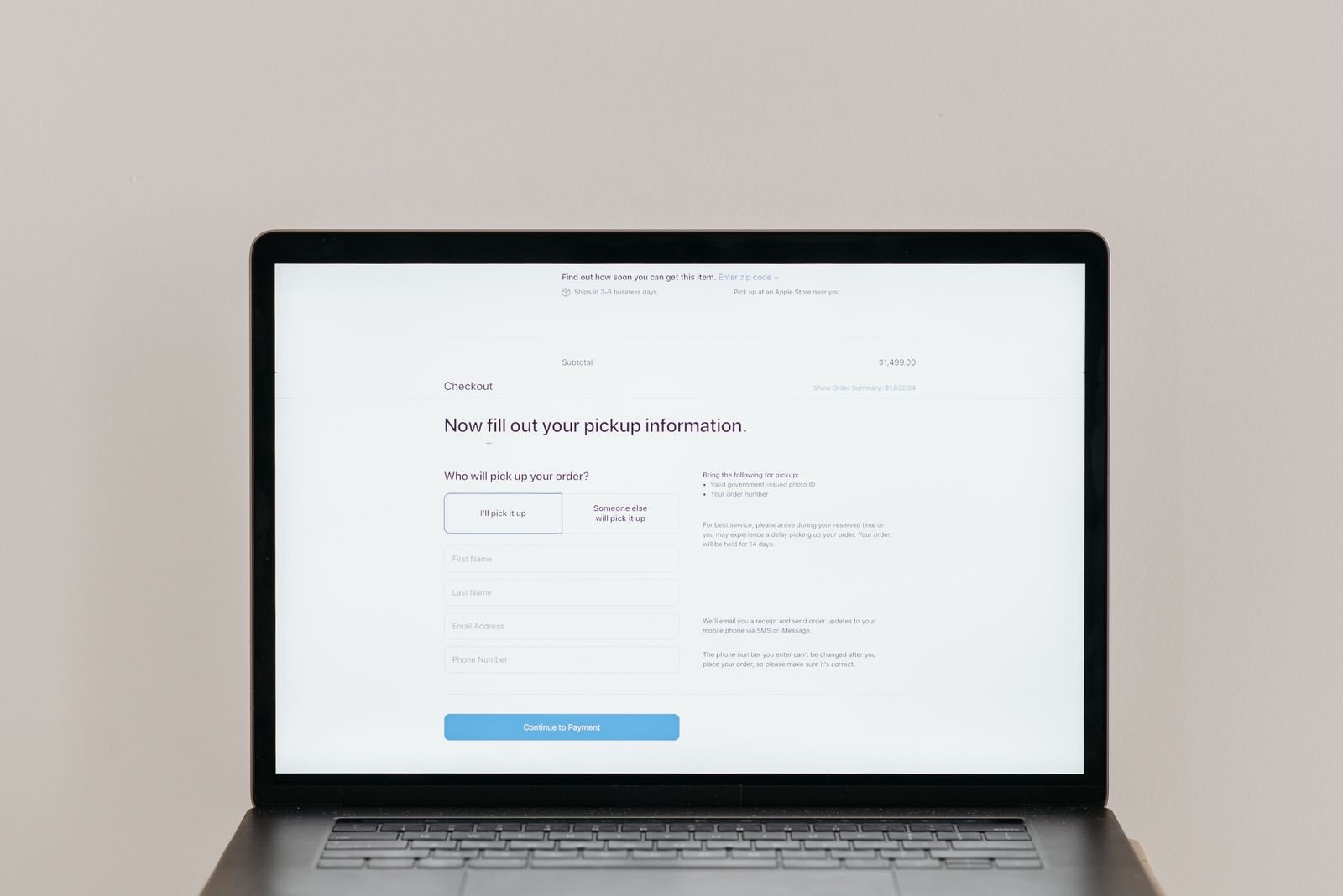
To test website contact form setups before launch, fill the form in as a real visitor would, submit it, and confirm three things: the success message appears, the message arrives in the right inbox, and the sender gets a confirmation if promised. Repeat the checks for your checkout flow too — silent form failures cost you enquiries nobody reports.
Every site owner has a version of the same story. The site goes live, the design looks great, visitors arrive — and weeks later someone mentions they tried to contact you and never heard back. Or a customer abandons a cart because the payment button froze on their phone. Forms and checkouts are where a website either earns its keep or quietly leaks every opportunity it attracts. Testing them takes an afternoon; not testing them can cost months of lost enquiries and sales.
Why Do Contact Forms Fail Silently?
A contact form can look perfect and still lose every message. The usual causes are invisible from the front of the site.
Email delivery problems. Most forms send mail through your host’s mail server, and that mail often lands in spam — or never arrives at all. A form that shows “Message sent!” while the email goes nowhere is the single most common failure, and you will only catch it by checking the receiving inbox yourself.
Required-field traps. A field a visitor cannot complete — a phone number that rejects international formats, a dropdown with no valid option — blocks submission entirely. The visitor sees an error, shrugs, and leaves.
Spam protection that blocks humans. CAPTCHAs and honeypot fields are necessary, but a misconfigured one can reject legitimate submissions. If your spam filter is too aggressive, your inbox stays empty for the wrong reason.
How Do I Test Website Contact Form Submissions Step by Step?
Work through the form the way a stranger would — not the way its builder would.
1. Submit it with real data. Use a real name, a real email address you control, and a message that looks like a genuine enquiry. Fake data like “test test test” can trip spam filters.
2. Check the success message. After submitting, you should see a clear confirmation — “Thanks, we’ll reply within one business day” — not a blank page, not a reload of the empty form, and not an error in red text.
3. Confirm the message arrives. Open the inbox the form should deliver to and check the inbox, the spam folder, and any forwarding rules. If the message is not there within a few minutes, the form is broken no matter what the success message said.
4. Check the sender’s confirmation. If the form promises an automatic reply, check it arrives too — at the address you entered. A missing confirmation makes visitors wonder whether their message went through, and many will submit it twice.
5. Test the failure paths. Submit the form empty and confirm it shows a helpful error instead of a blank page. Enter an invalid email address and check it is caught gracefully. Type a very long message and make sure nothing truncates it.
6. Test on a phone. Open the form on a real mobile device, not just a resized desktop window. Tap every field and make sure the submit button is reachable without scrolling gymnastics. Roughly half your visitors will meet your form on a phone first.
I once tested a client’s form that had been live for three months. The success message was polished — but the notification email went to an inbox deleted during a hosting migration. Three months of enquiries, gone. The fix took two minutes; the test would have taken five.
What Should I Check in a Checkout Flow?
A checkout is a form with money attached, so every contact-form lesson applies — plus a few that only show up when payment is involved.
Walk the whole path as a buyer. Add a product to the cart, check out, and complete the purchase. Then check the confirmation page, the confirmation email, and the order in your store’s admin panel. Every step should work; every confirmation should arrive.
Test every payment method you offer. Cards, PayPal, Apple Pay, bank transfer — each is a separate integration that can break independently. A checkout that works with Visa but fails with Mastercard costs you sales you never hear about.
Test a declined card. Use a test card number your payment provider supplies for declines. The checkout should show a clear, polite error and let the buyer try again — not a blank page, not a duplicate charge.
Check the totals. Taxes, shipping, discounts, and currency conversion are where the number on screen stops matching the number charged. Verify the maths on a real order, including a discounted one and an international address.
Test on mobile, slowly. Checkout on a phone is where most purchases now happen — and where most checkouts break. Fill in every field on a real phone and confirm the payment button stays visible and tappable when the keyboard is open.
What Tools Help Me Test Forms and Checkouts?
You do not need expensive software. A few free tools cover most of it.
Your browser’s developer tools. The Network tab shows whether a form submission actually reaches the server and what response comes back — a 500 error there explains a form that looks fine but never delivers.
A second email address. Use an address on a different provider to test delivery. If mail arrives at one and not the other, you have a deliverability problem to fix before launch.
Test cards from your payment provider. Stripe, PayPal, and every major gateway publish test card numbers for success, decline, and 3D Secure flows. Use them in your gateway’s test mode — never run real cards through a live checkout to “just check.”
A staging copy of the site. Run destructive tests — failed payments, weird inputs, spam attempts — on a staging copy, not the live site. Then re-run the clean happy path on the live site before launch.
How Often Should I Re-Test After Launch?
Testing is not a one-time launch activity. Forms and checkouts break quietly over time — a plugin update changes a field name, a host changes a mail setting, a payment gateway deprecates an API.
Monthly, at minimum. Put a recurring reminder in your calendar: submit the contact form, check the inbox, run a test checkout. It is the cheapest insurance a website has. Re-test after every plugin, theme, or hosting update too — five minutes after an update beats five days of lost enquiries.
Whenever a visitor reports a problem. Treat every “I tried to contact you but…” message as a fire alarm, not a one-off. Test immediately, and test the whole form, not just the step they mentioned.
And once your forms and checkout are proven, make sure the pages around them look right on the screens your visitors use — try our free responsive preview tool to see your site at phone, tablet, and desktop sizes in one view.
FAQ
How do I test website contact form submissions?
Fill it in with real data as a visitor would, submit it, and confirm the success message appears and the message actually arrives in the receiving inbox — including the spam folder. Then test the failure paths: empty submission, invalid email, and a very long message.
Why is my contact form not sending emails?
Usually because the notification email goes to the wrong address, lands in spam, or your host’s mail server is blocked. Check the receiving inbox and spam folder first, then verify the form’s notification settings and consider an SMTP plugin that sends through a real mail provider instead of your host.
How do I test a checkout flow without spending money?
Use your payment gateway’s test mode with its published test card numbers — Stripe and PayPal both provide cards for successful payments, declines, and 3D Secure checks. Run the full path from cart to confirmation email, then switch back to live mode and do one real low-value purchase to confirm the live flow.
How often should I test my contact form?
Test it before launch, again after every plugin, theme, or hosting update, and at least once a month after that. Forms break silently — a monthly five-minute test catches problems before they cost you weeks of lost enquiries.