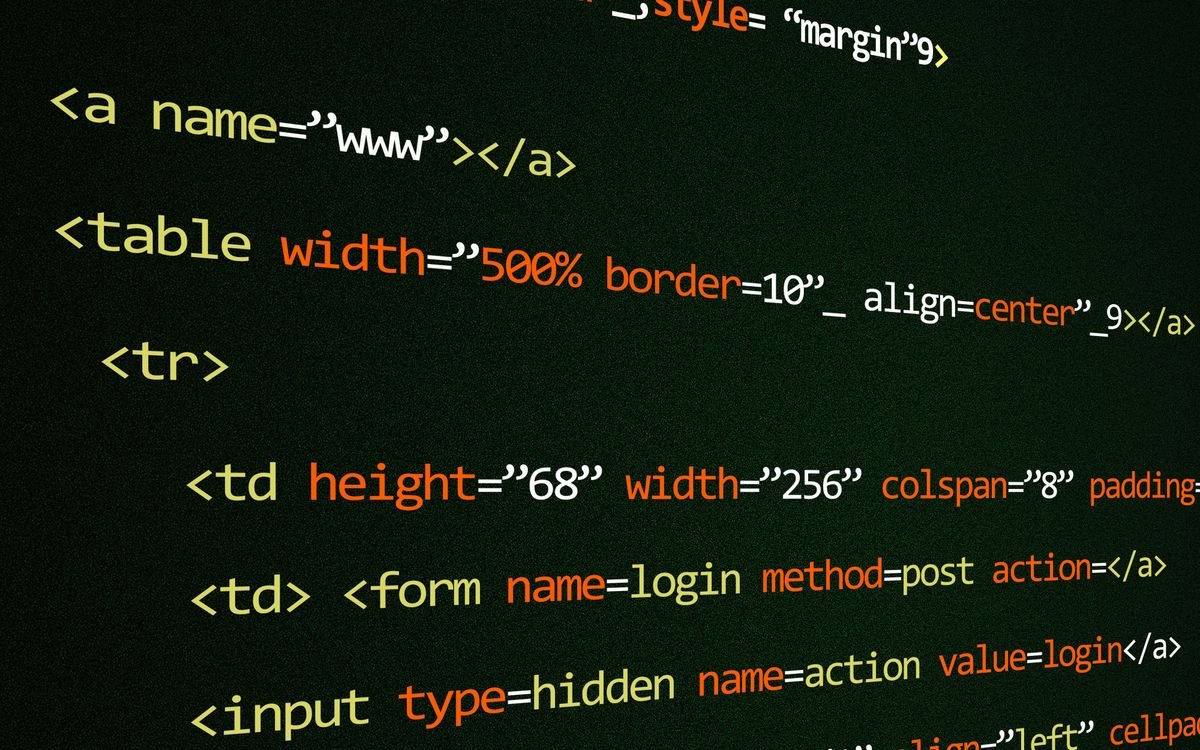
To view a website’s source code, right-click anywhere on the page and choose “View page source” (or press Ctrl+U on Windows/Linux, or Cmd+Option+U on a Mac). Your browser opens a new tab showing the page’s HTML — the raw markup behind everything you see. You can also inspect a single element by right-clicking it and choosing “Inspect” instead.
What Is a Website’s Source Code, Exactly?
A website’s source code is the set of instructions your browser turns into the page you see. The main ingredient is HTML, which structures the content: headings, paragraphs, images, links, and forms. Layered on top are CSS, which controls how it all looks, and JavaScript, which adds interactivity. When you view a page’s source, you are mostly looking at the HTML — the skeleton of the page.
It is worth knowing what you will not see. The source code in your browser is the front-end code the server chose to send you. The server-side code — the PHP, Python, or database queries that generated the page — never leaves the server. So viewing source code tells you how a page is built, not how the whole website works behind the scenes.
That is still plenty. Designers check how a competitor built a layout. Beginners learn HTML faster by reading real pages than by reading textbooks. Site owners check whether their title tags, meta descriptions, and tracking scripts are actually in place. And anyone debugging a broken page starts by looking at what the browser actually received.
How Do I View a Website’s Source Code in Chrome?
Chrome makes viewing source code a two-second job. Open the page you want to examine, right-click anywhere on it (not on an image or a link, which gives you a different menu), and click “View page source”. Chrome opens a new tab with the page’s HTML, colour-coded and line-numbered so you can read it.
The keyboard shortcut is faster still: press Ctrl+U on Windows or Linux, or Cmd+Option+U on a Mac. There is also a menu route — click the three-dot menu, go to More Tools, then Developer Tools — but the shortcut or the right-click menu is what you will use in practice.
One useful trick: you can view the source of any page by typing view-source: before its address in the address bar, like view-source:https://example.com. Chrome loads the raw HTML directly. This is handy when a site has disabled right-clicking, which some sites do in a misguided attempt to stop people copying content.
How Do I View Source Code in Firefox, Safari, and Edge?
Every major browser has the same feature, just under slightly different names. In Firefox, right-click and choose “View Page Source”, or press Ctrl+U (Cmd+U on a Mac). Firefox’s source view is particularly readable, with collapsible sections and clickable links for stylesheets and scripts.
In Safari, the feature is hidden until you enable the Develop menu. Go to Safari → Settings → Advanced and tick “Show Develop menu in menu bar”. Then right-click any page and choose “Show Page Source”, or press Cmd+Option+U. Once the Develop menu is on, it stays on, and you also get access to the Web Inspector.
In Microsoft Edge, which is built on the same engine as Chrome, the steps are identical to Chrome: right-click and choose “View page source”, or press Ctrl+U. On a phone, the options are limited — mobile browsers generally do not offer a view-source command — so for a proper look, use a desktop browser, or use the view-source: trick in Chrome for Android, which does work.
What Is the Difference Between View Source and Inspect Element?
This confuses almost every beginner, so it is worth getting straight. “View page source” shows you the HTML exactly as the server sent it, before JavaScript ran. “Inspect element” (DevTools) shows you the live DOM — the page as it exists right now, after JavaScript has modified it.
In practice, that means view-source is best when you want to check what a page originally contained: its title tag, meta description, canonical link, and tracking code. Inspect is best when you want to understand how something on the page actually works or looks right now: which CSS rule is styling a button, why an element is misaligned, or what a script changed after the page loaded.
Use both. View source to check the raw material; inspect to see the finished, running page. If a tracking script shows up in Inspect but not in view-source, it was added by JavaScript after the page loaded — a common setup with tag managers. If it shows in view-source but the page behaves differently, something on the page is overriding it.
What Should I Look For in a Page’s Source Code?
A wall of HTML is intimidating at first, but you only need to know a handful of landmarks. Start at the top: the <title> tag tells you the page’s title as search engines see it, and the <meta name="description"> tag holds its search snippet. If either is missing or stuffed with keywords, you have found something worth fixing on your own site.
Look for the <link rel="canonical"> tag, which tells search engines which URL is the official version of the page. Then scan for Open Graph tags — og:title, og:description, og:image — which control how the page looks when shared on social media. If a page shares badly, the answer is almost always in these tags.
Further down, search for analytics or gtag to check whether tracking is installed, and look at the <img> tags to see whether images have alt attributes. Press Ctrl+F in the source view and search for these terms directly — nobody reads a whole page of source top to bottom.
A Mini-Test: Read Your Own Site’s Source Like a Visitor Would
Here is a five-minute test that teaches you more about your site than most audits. Open your homepage, view its source with Ctrl+U, and answer four questions: Is the title tag the title you intended? Is the meta description present and under about 160 characters? Is there a canonical tag, and does it point at the right URL? Are your Open Graph tags present, with an image?
Then do the same for your most important landing page. Most site owners find at least one surprise: a duplicate title, a missing description, a canonical pointing at the wrong version of a URL, or a social image that was deleted months ago. Fix what you find, then check how the page actually looks to visitors — a title tag that reads well in source can still wrap awkwardly on a small screen. Try it on your own site with the free responsive preview tool and check the mobile view specifically, since that is where most of your visitors will meet your page first.
Is It Legal to View a Website’s Source Code?
Yes. Viewing a website’s source code is completely legal. Your browser has to download that code to show you the page at all — viewing it is just looking at what was already sent to your computer. Every browser ships with the feature built in, and web developers rely on it every day.
What is not fine is copying someone’s code wholesale and passing it off as your own, or using what you find to attack a site. Learning from how a page is built, borrowing a technique, or checking your own site’s tags is normal practice. Lifting a whole design, its images, and its text is not. The line is the same as with any creative work: learn from it, do not steal it.
FAQ
How do I view a website’s source code on a Mac?
In Chrome or Firefox on a Mac, press Cmd+Option+U, or right-click the page and choose “View page source”. In Safari, first enable the Develop menu in Settings → Advanced, then press Cmd+Option+U or right-click and choose “Show Page Source”.
Can I view a website’s source code on my phone?
Mobile browsers offer no built-in view-source command, but in Chrome for Android you can type view-source: before the page’s address in the address bar, like view-source:https://example.com, to see the raw HTML. For a comfortable read, a desktop browser is still the better choice.
Why does the source code look different from what I see with Inspect?
View source shows the HTML exactly as the server sent it, before JavaScript ran. Inspect shows the live page after JavaScript has modified it. If the two differ, scripts on the page changed the content after it loaded — which is normal on modern sites.
Can a website stop me from viewing its source code?
No. A site can disable right-clicking, but that only blocks one route to the feature. You can still press Ctrl+U, or type view-source: before the URL in the address bar. The code has to reach your browser for the page to display, so it can always be viewed.