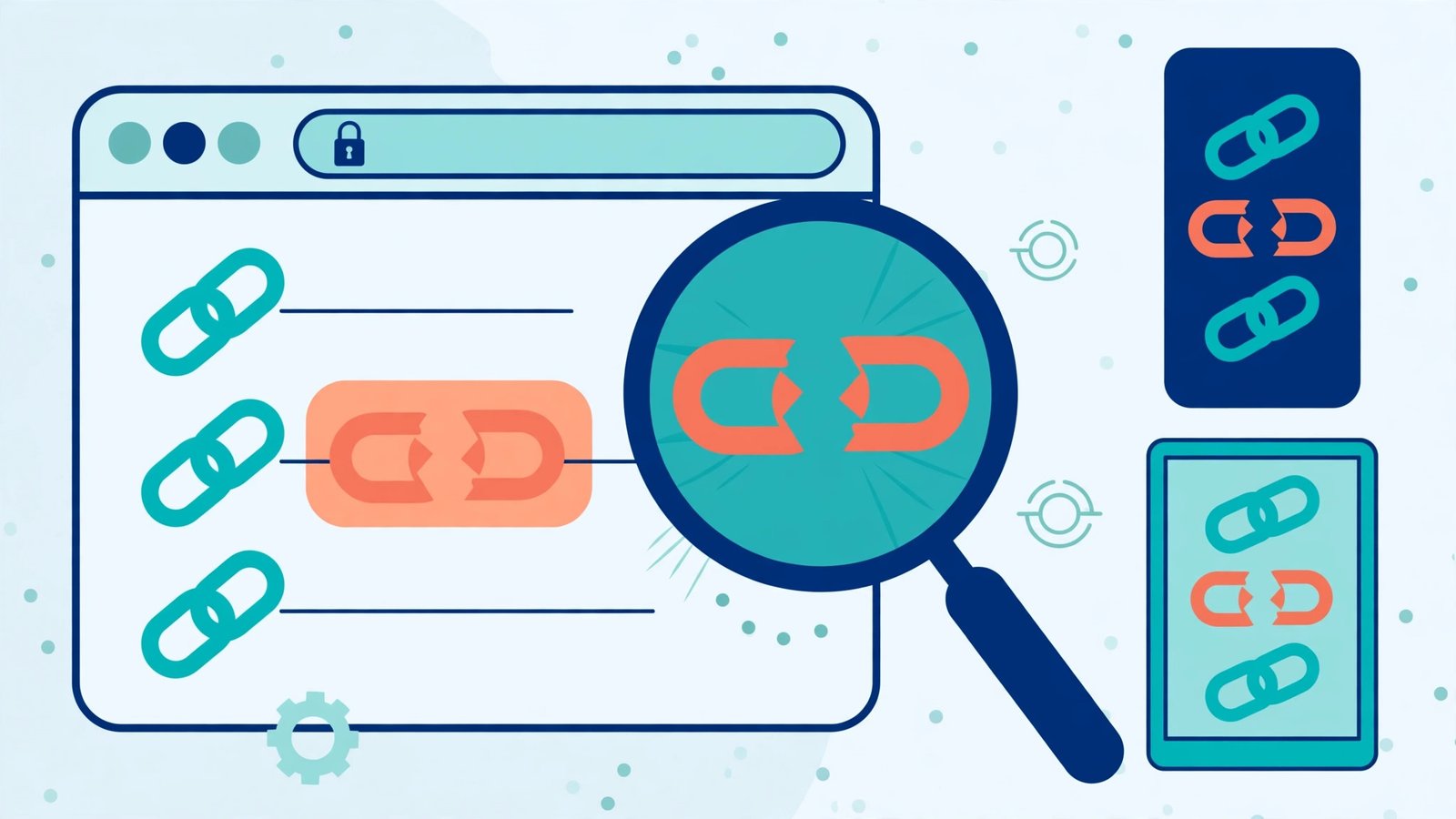
A broken link checker scans every link on your website and reports the ones that no longer work — pages that return a 404 error, links to sites that have moved or closed, and downloads that no longer exist. Run one before every major update and at least once a quarter, and you will catch dead links before your visitors do.
I first understood the damage dead links do while helping a friend who runs a small craft shop online. Her most popular blog post linked to a supplier’s product page that had been taken down months earlier. Visitors clicked through, hit an error page, and left — and because the post still ranked well, it was sending a steady stream of people straight into a dead end. One free scan found eleven broken links across her site, including two on her homepage. Fixing them took an afternoon; the lost visitors from the months before that are impossible to count. That is the quiet problem with broken links: nobody complains about them, they just leave.
What is a broken link, and why does it matter?
A broken link is simply a link that no longer leads anywhere useful. The most common kind is a 404, where the target page has been deleted or its address has changed. Others include links to domains that have expired, pages blocked by a server error, and downloads removed from a file host. To a visitor they all look the same: a click that goes nowhere.
Broken links hurt in three ways. First, they frustrate visitors — a dead link on a checkout, booking, or contact page can end a sale outright. Second, they waste search engines’ crawl budget: when Google follows your links into error pages, it spends time on pages that do not exist instead of indexing your real content. Third, a site full of dead links looks neglected, and both visitors and search engines notice. None of this requires a dramatic failure; a handful of stale links from old posts is enough.
How do you run a broken link checker on your site?
You do not need to click every link yourself. A broken link checker does the crawling for you. Here is the routine I use on small sites:
Step 1: Pick a checker that fits your site’s size. For a site under a few hundred pages, a free online checker is plenty — paste your homepage address and let it crawl. For larger sites, a desktop crawler or a WordPress plugin that checks in the background works better, since browser-based tools often cap the number of pages on their free tier.
Step 2: Run the scan from your homepage. The checker follows every internal link it finds, then every external link, recording the status code of each destination. A 200 means the page is fine; a 404 means it is gone; a 500 means the destination server is erroring; a redirect (301 or 302) means the link still works but lands somewhere else.
Step 3: Export the report and sort it. Most checkers let you download the results. Sort by the page the broken link appears on, not by the broken destination — one dead destination linked from twenty posts is one fix repeated twenty times, and it is faster to work through it page by page.
Step 4: Check each result by hand before fixing. Automated checkers sometimes flag links that are actually fine: a site that blocks bots, a page that loads slowly, or a link behind a login wall can all show up as errors. Open the flagged link yourself; only fix the ones that genuinely fail for a normal visitor.
Step 5: Re-run the scan after fixing. This is the step people skip. A fix can introduce a new typo, and a redirect can point at another dead page. A second scan takes minutes and proves the site is actually clean.
One practical note: run the first scan when your site is quiet, not right after a big update. If you scan mid-migration, half the report will be pages you were about to fix anyway.
What should you fix first when the report comes back?
Not every broken link is equally urgent. Work in this order:
1. Links on your most-visited pages. A dead link on your homepage or top blog post affects far more people than one buried in a five-year-old archive post. Start where the traffic is.
2. Links that break a task. A dead “book now”, “buy”, or “contact us” link costs real business. Fix these before any decorative or footnote link.
3. Internal links to your own deleted pages. These are entirely your fault and entirely yours to fix — point them at the replacement page, or remove the link if no replacement exists. Never leave an internal link pointing at a 404 you control.
4. External links to moved pages. If the destination still exists at a new address, update the link. If it is gone for good, either replace it with a live alternative source or remove the link and adjust the sentence so it still reads cleanly.
5. Redirect chains. A link that hops through two or three redirects before landing still works, but it is slow and fragile — one hop breaking kills the whole chain. Point the link directly at its final destination.
A quick pass with our responsive preview tool is worth doing at the same time: after fixing links, it shows your key pages at phone, tablet, and desktop widths side by side, so a fix that repaired a link but broke the layout does not slip past you.
How often should you check for broken links?
For most small sites, once a quarter is enough, plus a scan after any redesign, migration, or bulk edit. Sites that publish often or link out heavily — resource lists, directories, news roundups — should scan monthly, because external pages disappear constantly and without warning.
A mini-test on a small blog I maintain shows why the routine matters. A quarterly scan found nine broken links: three internal links to posts whose slugs had changed during a tidy-up, four external links to pages that had moved, and two links to a tool that had shut down. None of them had produced a single complaint. Fixing them took under an hour, and the site’s next crawl showed no error pages at all. The lesson is simple: broken links do not announce themselves. The only way to know your site is clean is to check.
FAQ
What does a broken link checker do?
A broken link checker crawls your website, follows every link it finds, and reports which ones fail — typically 404 errors, server errors, expired domains, and removed downloads — so you can fix them before visitors hit them.
How often should I run a broken link checker?
Once a quarter suits most small sites, plus a scan after any redesign, migration, or bulk edit. Sites that publish frequently or link out heavily should scan monthly, since external pages move or disappear without warning.
Are redirect links considered broken links?
No — a redirect still delivers the visitor to a page, so it is not broken. But long redirect chains are worth cleaning up: point the link directly at its final destination so one broken hop cannot kill the whole chain.
Should I remove a broken external link or replace it?
Replace it when a live, equally useful alternative exists — your readers still get value. Remove it only when the destination is gone for good and no good alternative exists, and rewrite the surrounding sentence so the text still reads cleanly.